
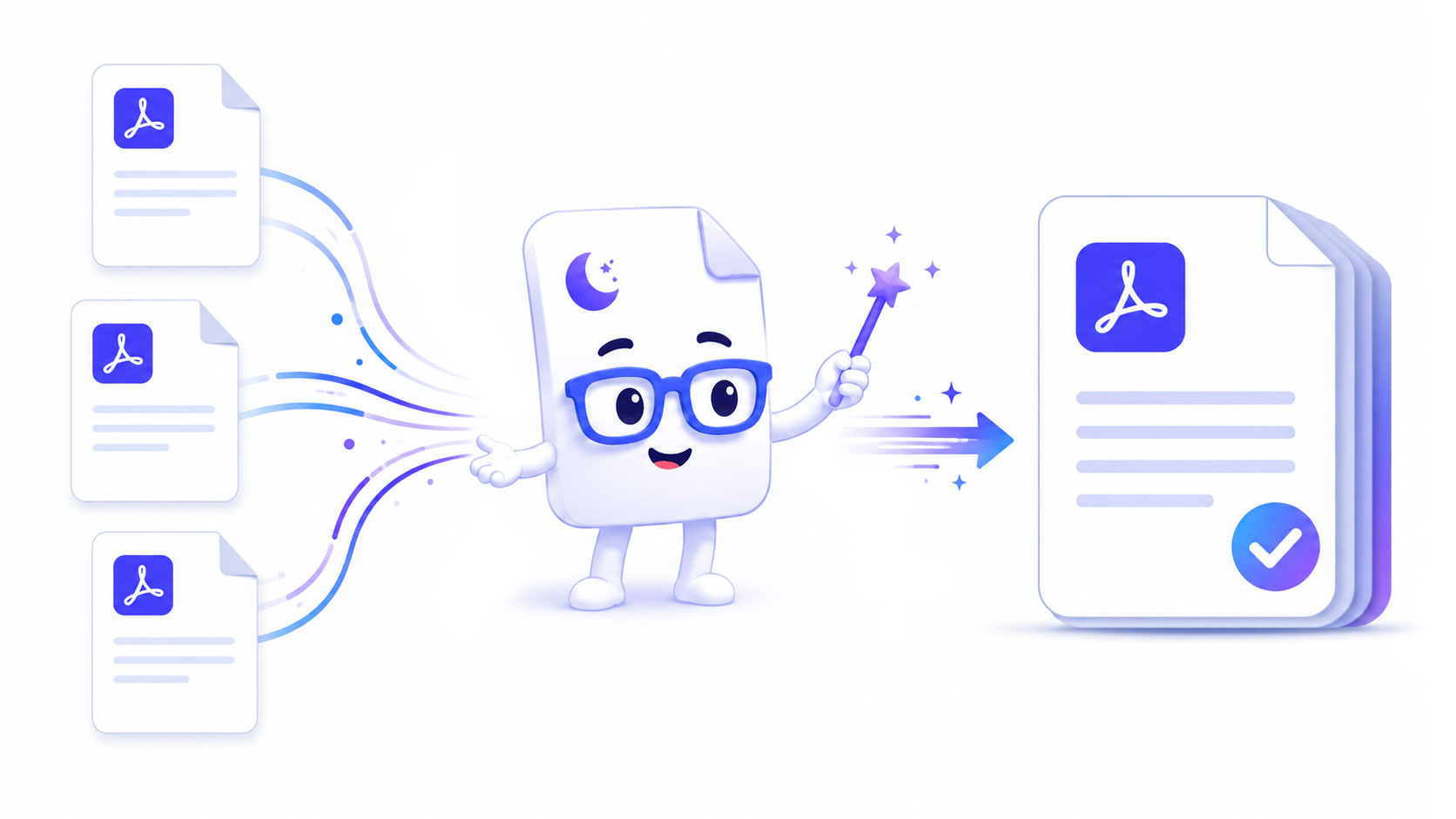
You’ve got a cover letter, a CV, and three certificate scans — and the portal wants one PDF. Or a folder of invoices that should be a single file for the accountant. Merging PDFs is one of the most common document chores there is, and the searches around it all carry the same quiet worries: is it actually free, do I have to register, is there a limit, and will it wreck the quality? This guide answers all four, walks through the fastest free way to merge, and is honest about when a paid tool makes more sense.
When you actually need to merge PDFs
Merging isn’t busywork — it’s usually a system on the other end forcing a single file. The everyday cases:
- Job and university applications. Upload portals very often accept one attachment. Cover letter + CV + references + transcripts have to become a single, correctly ordered PDF.
- Invoices, receipts, and expenses. A month of separate receipts is far easier to send — and to file — as one bundled PDF than as fifteen attachments.
- Scanned documents that came in parts. Scanners and phone-scan apps often save each page or each side as its own file. Merging reassembles them into the original document.
- Contracts with appendices. The agreement, the schedule, the signed signature page, and the exhibits read as one continuous document when they’re merged in order.
In every case the goal is the same: one file, the right pages, in the right order, without losing anything along the way.
How to merge PDF files online free
The fastest route works identically on Windows, Mac, Linux, and phones, with nothing to install. Our Merge PDF tool runs entirely in your browser — the files are combined locally and never uploaded, which matters when you’re bundling a contract or an ID scan.
- Open pdfluna.com/merge-pdf and add your files — drag them in, or click to browse. You can add up to 50 files, each up to 100 MB, and keep adding more after the first batch.
- Put them in order. Each file becomes a card; drag the cards up and down on desktop, or use the ↑ / ↓ buttons on touchscreens. The merged PDF follows the card order from top to bottom.
- Click Merge. The tool copies every page from every file into one new document, right there on your device.
-
Download. Two files come out as
<first-name>-merged.pdf; three or more come out asmerged-N-pdfs.pdf. Your originals are never changed.
That’s the entire flow — no account, no email, no watermark stamped across your pages.
“Free without registration” and “unlimited”: read the fine print
Two of the most common autocomplete add-ons — without registration and unlimited — exist because plenty of “free” mergers aren’t quite either. The usual catches worth checking on any tool you try:
- Signup walls. Some sites let you merge once, then ask you to create an account (or start a trial) for the second go.
- Daily or file-count limits. Free tiers frequently cap you at a couple of tasks per day or a small number of files per merge.
- Watermarks. A few free tools stamp the output, which defeats the purpose for anything you’re sending professionally.
- Upload limits. Server-based tools cap file size because they have to receive, store, and process your documents.
PDFluna sidesteps all of this for a structural reason rather than a generous one: because the merge runs in your browser, there’s no server cost to ration. So there’s no account, no daily cap, no watermark, and the only limit is the practical one — 50 files of up to 100 MB each per merge, which covers almost any real document bundle.
Does merging reduce quality? (No — and here’s why)
This is the worry behind the high quality searches, and the good news is that a proper merge is completely lossless. Merging is a copy operation: each page object is lifted out of its source file and placed, unchanged, into the new one. Text stays selectable and searchable, images keep their exact resolution, and fonts, form fields, hyperlinks, and signatures are preserved.
This is the opposite of compression, where images are deliberately re-encoded to save space. Nothing about merging touches the pixels, so a 300-page combined file looks identical to its sources. If a merged PDF ever looks softer than the originals, that’s a sign the tool was rasterising your pages instead of copying them — a real merger never does that. The one thing to watch is total size: combine several large scanned files and the result is naturally big, so if it’s too heavy to email, run it through Compress PDF afterwards rather than worrying about the merge itself.
Merging images (“merge PDF from JPG”)
A lot of people searching to merge are really holding a pile of photos or scanned images, not PDFs. Merge PDF combines PDFs, so the move is a two-step one: first turn the images into a PDF with our JPG to PDF tool — it takes a batch of JPG or PNG files and produces one PDF, in the order you arrange them — then merge that PDF with any other documents you need. Doing it this way keeps the images crisp and gives you control over page order, which is hard to get when you try to glue raw images together directly.
Is it safe to merge sensitive PDFs?
Merging often involves exactly the documents you’d least like to hand to a stranger: contracts, payslips, tax returns, medical forms, passport scans. With a browser-based tool that’s not a concern, because the files never leave your device. They’re read into memory, combined locally, and saved straight back to your downloads — no upload, no copy on a server, nothing to delete afterwards because nothing was ever sent.
You don’t have to take that on faith. Open your browser’s developer tools, switch to the Network tab, and merge a file: you’ll see no upload request go out. That’s the practical test for any tool claiming to be private — if your document genuinely stays local, the network stays quiet.
After the merge: order, orientation, and stragglers
Combining files often surfaces small issues that were easy to miss in the separate documents. A scanned section turns out to be sideways; a duplex scan slipped a blank page between two others; one document was added in the wrong spot. None of these mean you have to start over. If a section is rotated, fix it with Rotate PDF — orientation is a lossless metadata change, so it’s instant and keeps the text selectable. If a blank or duplicate page sneaked in, drop it with Remove Pages. And if you only got the order wrong, just re-open the files in Merge PDF, drag the cards into place, and merge again — the originals are untouched, so there’s no cost to a second pass. Think of merge as the first step in assembling a document, with these tools as the quick polish afterwards.
The bottom line
Merging PDFs should be a ten-second job, and it is — once you’re using a tool that doesn’t make you register, cap your files, or stamp a watermark on the result. For combining everyday documents, a browser-based merger is the fastest, most private option: free, unlimited, lossless, and working the same on your phone as on your laptop. Reserve the paid suites for the genuinely heavy lifting — bulk server-side jobs or OCR — and keep the simple, frequent task of “make these into one PDF” where it belongs: on your own device, in a couple of clicks.