
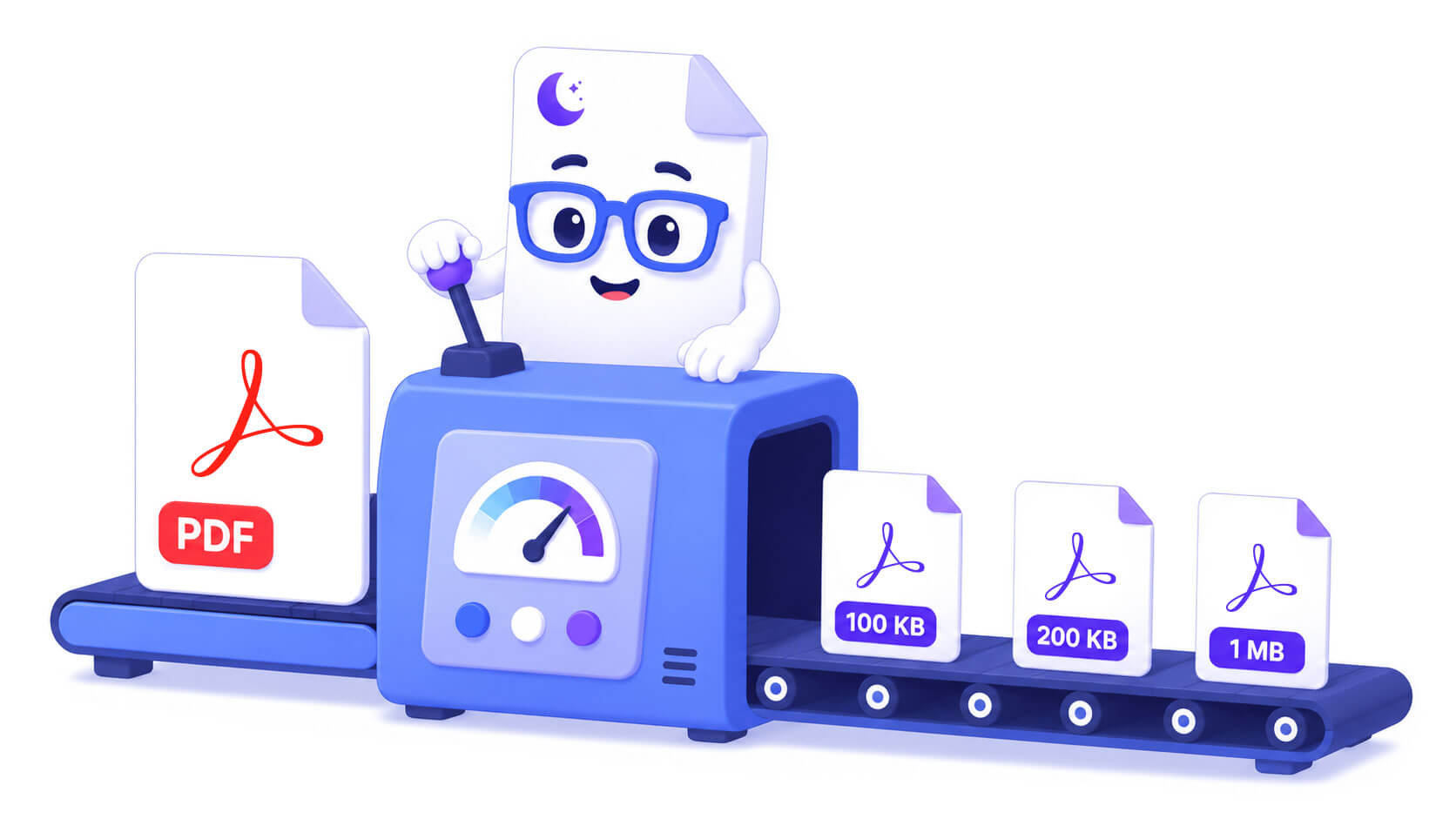
“Maximum file size: 100 KB.” Anyone who has uploaded a CV to a job portal, a document to a government site, or an attachment to a university application has met one of these limits — usually at the worst possible moment. The good news: hitting 1 MB is almost always possible, and 200 KB usually is. The honest news: 100 KB is sometimes physically impossible for the file you have, and knowing why saves you an hour of trying random tools. Here’s what each target takes, with real numbers.
What actually determines how small your PDF can go
A PDF’s compressibility is set by what’s inside it, and the spread is enormous:
- Pure text and vector graphics — a page costs roughly 5–20 KB. A 10-page text contract is often under 200 KB before you compress anything.
- Office documents with a few images — each embedded photo adds 100 KB–2 MB depending on resolution. This is the category where compression shines: downsampling images recovers most of that without visible loss.
- Scans — every page IS an image. A 300-DPI colour A4 scan runs 1–10 MB per page raw. This is the category where size targets get physical: there’s a floor below which the page stops being readable.
So before chasing a number, check which case you have: open the PDF and try to select text with your cursor. Selectable text → you’re in good shape. Nothing selects → it’s a scan, and the targets below get harder.
Compressing to 1 MB: almost always doable
The 1 MB target — common for email-friendly attachments and older document portals — is the easy case. Drop the file into our PDF compressor, pick Medium, download. Typical results: a 4 MB photo-rich report lands at 1–1.5 MB; an 8 MB scan at 2–3 MB; running the same file once more on High usually clears the bar. Files that started under ~15 MB make it to 1 MB in one or two passes more often than not.
If a scan stubbornly sits above 1 MB after a High pass, the page count is the problem — see the structural moves below.
Compressing to 200 KB: usually possible, with caveats
The 200 KB tier shows up on job boards and university application systems. What fits:
- Text-based files up to ~20 pages — comfortably. A text CV is 30–80 KB before compression; even with a headshot photo it clears 200 KB after one pass.
- Office docs with images — usually, after a High pass. The images come out soft on a print but fine on screen, which is what the portal reviewer will use anyway.
- Scans up to ~3 pages — yes, at readable quality.
- Longer scans — this is where you stop compressing and start cutting. A 10-page scan at 200 KB means 20 KB per page: unreadable.
The classic 200 KB scenario is a scanned CV. A better fix than brute compression: if you have the original document (Word, Google Docs), export it to PDF directly — the text-based export will be 10× smaller than the scan of its printout, at perfect quality. Scanning a printed document you generated yourself is the most expensive way to make a PDF.
Compressing to 100 KB: the honest answer
100 KB is a real limit on some government portals and legacy systems, and it’s the target where most "compress to exact size" searches end in frustration. The physics:
- 1–3 pages of text: easy. Often the file is already under 100 KB and needs nothing.
- One page of scan: doable. Grayscale + strong compression lands a readable A4 page at 40–80 KB.
- Multi-page scans: not at readable quality. Three pages might squeak through; five won’t. No tool changes this — the ones that claim to just blur your document until it fits.
When compression alone can’t hit 100 KB, change the inputs instead:
- Send fewer pages. Portals with 100 KB caps usually want one specific document, not your whole stack. Split the PDF and upload only the required pages.
- Delete what’s dead weight. Duplex-scan blank backs, cover sheets, appendix pages — remove them before compressing. Every dropped page is free budget.
- Re-scan smarter. If you control the scanner: 150 DPI, grayscale, not colour. That alone cuts a typical scan 4–6× against default settings — better than anything a compressor can do afterwards.
- For a single page, consider JPG. Some portals accept images; a page exported as JPG at moderate quality is often smaller than the same page wrapped in PDF structure.
Cheat sheet: common upload limits and what they take
- 25 MB — Gmail / Outlook attachments. Almost any document passes after one Medium pass; treat ~20 MB as the real Gmail ceiling because encoding overhead counts.
- 10 MB — corporate mail, many web forms. Medium pass handles typical scans; High for long ones.
- 5 MB — visa and immigration portals. High pass; split first if the dossier is over ~30 scanned pages.
- 2 MB — job boards, HR systems. Fine for text CVs and short scans; re-export from the source document instead of scanning where possible.
- 1 MB / 500 KB — older portals. Text documents pass; scans need High plus page discipline.
- 200 KB / 100 KB — government legacy systems. See the sections above — this is structural territory, not slider territory.
The 5-minute workflow that handles 90% of cases
- Open the compressor, drop the file, run Medium. Check the size — done? Stop. Quality at Medium is indistinguishable on screen.
- Still over? Run the original again on High. Check whether the pages you care about still read well — they almost always do.
- Still over? The problem is content volume, not compression. Cut pages, split the document, or re-export from the source file if one exists.
Everything above runs in your browser — the file never uploads anywhere, which is worth knowing when the document with the size limit is your passport scan. For the wider toolbox (Acrobat, Preview on Mac, the print-to-PDF trick), see our companion guide: How to Compress PDF File Size: 5 Methods That Actually Work.